
Easy Tips for Organizing Files on Your Computer
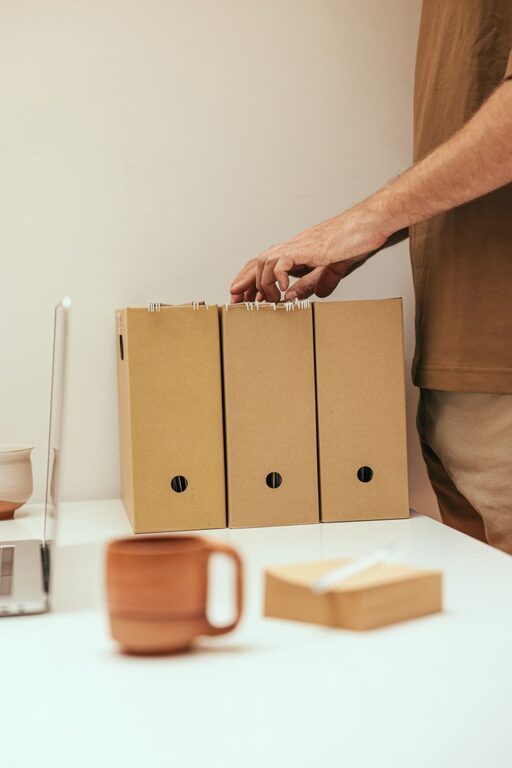
Organizing files on your computer can seem like a daunting task, especially if you have years of accumulated documents, photos, and downloads scattered around. However, a neat and well-structured file system can save you time, reduce stress, and improve your efficiency. Whether you use your computer for work, school, or personal projects, these practical tips will help you create an organized digital environment.
Why Organize Your Files?
Before diving into the how-to, it’s helpful to understand why organizing files matters:
– Faster Access: Find what you need quickly without endless searching.
– Better Productivity: Spend less time managing files and more time on important tasks.
– Reduced Stress: A clear structure minimizes clutter and confusion.
– Easier Backups: Well-sorted files make backing up data more straightforward.
Now, let’s explore some step-by-step tips to get your files in order.
1. Start With a Clear Folder Structure
One of the foundational steps is to create a logical folder hierarchy. Think of folders as drawers or folders in a filing cabinet.
– Use broad categories: Begin with main folders based on major areas such as Work, Personal, School, or Projects.
– Add subfolders: Within these main folders, create subfolders for specific topics or tasks, like “Invoices,” “Photos,” or “Reports.”
– Avoid too many layers: Keep the structure simple—avoid too many nested folders that can make navigation confusing.
For example:
`Documents > Work > 2024 > Reports`
2. Name Files and Folders Clearly
Clear names make finding files easier without opening them.
– Use descriptive, consistent names that include dates, project names, or versions if necessary.
– Avoid vague titles like “Document1” or “New Folder.”
– Consider adding dates in the format YYYY-MM-DD for easy sorting.
Example:
`2024-05-15_ProjectProposal_Final.docx` instead of `Proposal.docx`
3. Delete or Archive Unnecessary Files
Regularly review your files and remove anything you no longer need.
– Delete duplicates or outdated files.
– Archive old files: Move rarely accessed items to an external drive or cloud storage to keep your main folders uncluttered.
– Set a reminder to do this cleanup monthly or quarterly.
4. Utilize Built-in Search and Tags
Modern operating systems have powerful search tools.
– Use descriptive file names and metadata to optimize search results.
– Some systems, like macOS, allow you to tag files with colors or keywords. Use tags to group files across different folders for easy retrieval.
5. Organize Your Desktop
Your desktop is often the first place files accumulate.
– Limit the number of files on your desktop to keep it manageable.
– Use folders to group desktop files if you need quick access.
– Consider clearing your desktop regularly to maintain a clean workspace.
6. Back Up Your Files Regularly
An organized file system is only effective if your files are safe.
– Use automatic backup tools or cloud services to keep copies of your important data.
– Backups protect against accidental deletion, hardware failures, or malware attacks.
7. Use Cloud Storage and Syncing
Cloud services like Google Drive, Dropbox, or OneDrive can help keep your files organized and accessible from multiple devices.
– Create folders in the cloud that mirror your computer’s structure.
– Sync important files so changes are updated across devices.
– Take advantage of sharing options to collaborate easily.
8. Create Templates for Repetitive Tasks
If you often create the same type of document or file, save templates in an easily accessible folder.
– This saves time and keeps your files consistent.
– Examples include report templates, invoices, or image formats.
9. Automate File Organization
If you deal with many files daily, consider automation tools.
– Use software or scripts to move or rename files based on rules.
– Some email programs can automatically save attachments to specific folders.
– Automation frees up time and keeps your system orderly.
10. Maintain Your System
File organization is an ongoing process, not a one-time project.
– Schedule regular check-ins to tidy up files and folders.
– Adapt your system as your needs change.
– Stay disciplined about saving new files in the right place immediately.
—
By following these tips, you’ll create a well-organized computer file system that supports your daily tasks and long-term projects. A little time invested now can save you hours of frustration later. Start today and enjoy the peace of mind that comes with a clutter-free digital workspace!